
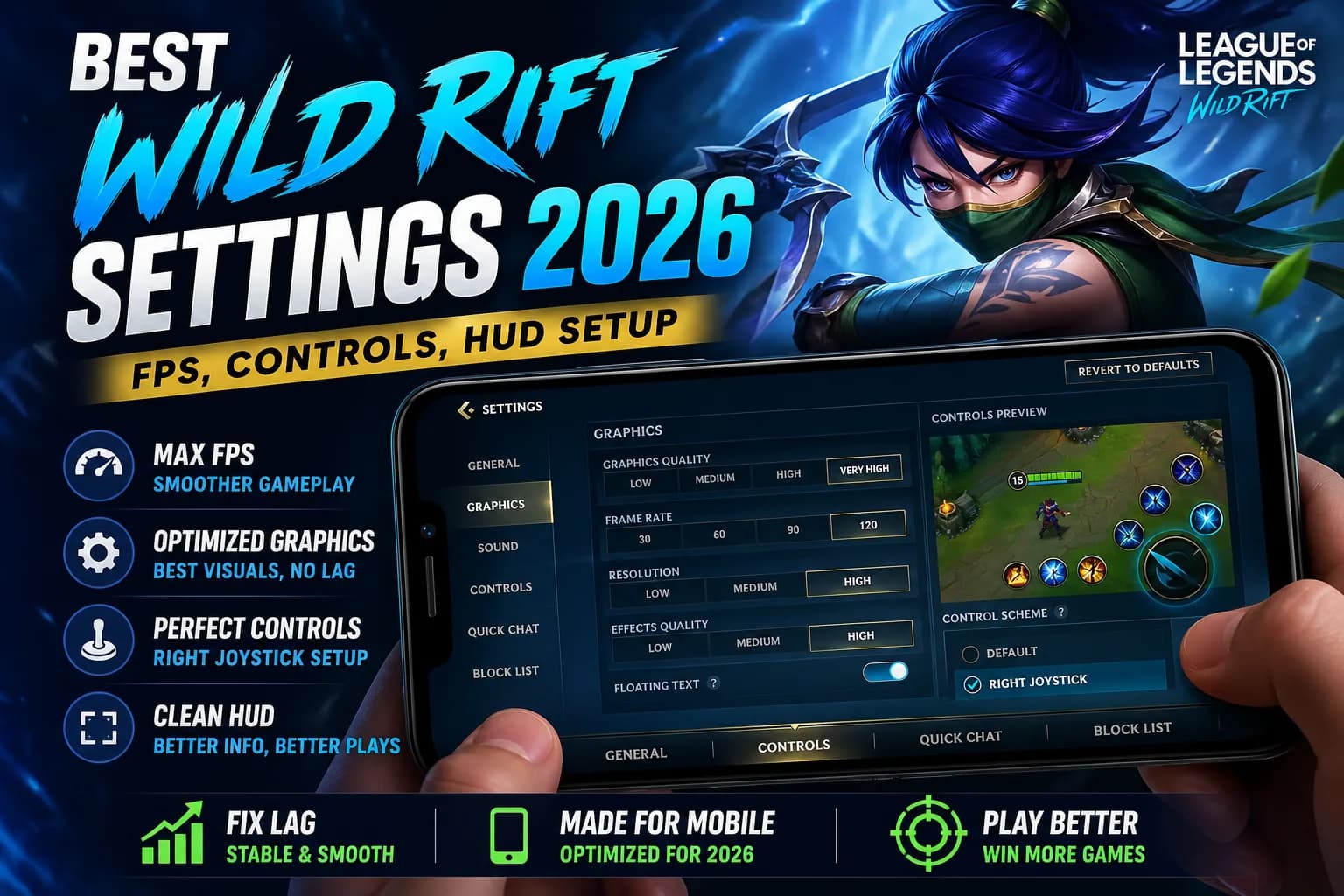
Best Wild Rift Settings for 2026: FPS, Controls and HUD Setup
 By Marcus Chen
7 min read
By Marcus Chen
7 min read
- The three settings that move the needle: Frame Rate cap, Joystick Type, and Custom HUD layout. Everything else is a fine-tune on top.
- Most "lag" complaints are network related, not phone related. Switch Wi-Fi to mobile data as a quick test before blaming your hardware.
- Default controls are fine for your first 50 games. Dial in a personal Custom HUD only after you have enough games to know what you actually reach for during fights.
- Lock 60 FPS first, then push visual quality up until your phone gets warm. A stable 60 feels twice as smooth as 30 for the same skill level.
- Floating Joystick beats Fixed for the majority of players. Your thumb wanders during long sessions; floating re-centers under it instead of leaving you stranded.
- A handful of "bugs" players report (heal not casting, camera swinging back, item button hard to reach) are settings, not bugs. Five minutes in the Custom HUD editor fixes most of them.
Wild Rift's defaults work fine for your first fifty games, but small adjustments to graphics, controls, and HUD layout make a real difference once you start climbing past Silver. This guide walks through every setting that actually matters in 2026, what each one does, and which combinations work best for the most common phones.
Graphics Settings That Actually Move the Needle
Wild Rift's graphics menu is split into Frame Rate, Quality, and Anti-Aliasing. Most players spend too much time on the wrong toggles. Start here:
- Frame Rate: Choose Low (30 FPS), Medium (45), High (60), or Ultra (120 if your device supports it). This single setting affects how smooth the game feels more than anything else.
- Resolution: Stick with your phone's native unless battery drain is killing your sessions. Dropping resolution helps on older phones; on flagships it's barely noticeable.
- Quality: Controls character detail, spell effects, and shadow quality. Drop Quality before you drop Frame Rate if your phone can't sustain 60.
- Anti-Aliasing: Smooths edges. Costs roughly 10% of your performance budget. Off if you want maximum FPS, on if your phone has headroom.
Frame Rate vs Visual Quality: The Tradeoff Most Players Get Wrong
Players prioritize visual quality and end up playing at 30 FPS. That is backwards. 60 FPS is dramatically smoother for the kinds of plays that win games: hopping over walls with mobility skills, dodging skill shots, last-hitting under tower. Your eyes notice 30 vs 60 FPS in a way they do not notice High vs Ultra textures.
If your phone cannot sustain 60 FPS at High quality, the order to drop things is:
Controls: Joystick and Cast Modes
Three control decisions affect every game you play. Get these right and the rest of the settings are decoration.
- Joystick Type: Fixed (locked to a corner) vs Floating (re-centers wherever your thumb lands). Floating wins for most thumbs because it eliminates the off-stick mistake when your thumb wanders mid-fight.
- Ability Cast Mode: Quick Cast (single tap to cast at your last targeted position) vs Tap-to-Cast (tap once to aim, tap again to confirm). Quick Cast is faster and most pros use it on basic abilities. Many keep Tap-to-Cast on the ultimate so they don't whiff a teamfight ult.
- Smart Cast on Self-Buffs: Toggle this on for skills like Heal and shields. Saves you a tap when you're already getting collapsed on.
Test each toggle individually for ten games. Do not change everything at once or you will not know which change helped.
Camera and Lock-On
Camera settings affect map awareness more than anything else. Most pros run the same handful of toggles:
- Camera Lock: Off by default and usually best left off. Locking the camera to your champion makes objective awareness harder; off lets you peek across the map by dragging.
- Drag Camera: Lets you swipe to peek without moving your character. Useful for jungle and support; less critical for laners glued to a wave.
- Auto-Attack Target Priority: Closest, lowest HP, or last-targeted. Most players prefer "lowest HP" because it makes last-hitting easier under tower; marksmen sometimes prefer "last-targeted" for kiting consistency.
HUD Layout: One-Handed vs Two-Handed
Wild Rift has a built-in Custom HUD editor at Settings → Game → Custom HUD. You can drag every button to a new position and resize it. This is the highest-leverage setting in the whole menu and most players never touch it.
Two-handed setup (most common)
- Move ability buttons closer to your right thumb's natural arc.
- Item buttons at the top right; they're used less often than ability buttons in fights.
- Recall and item shop on the left side, away from where your right thumb lives during a fight.
One-handed setup (commute play)
- All ability buttons scaled larger and clustered tightly inside your dominant thumb's reach.
- Auto-attack button enlarged so you do not miss a tap when the screen jostles on the train.
- Map and tab buttons moved to a corner you can reach without re-gripping the phone.
If you mess up a custom layout, the reset button lives at the bottom of the editor. No fear in experimenting.
A Wild Rift boost from a Sovereign-Ranked pro skips the grind. Pick your target rank, watch every match live in your dashboard.
Audio and Ping Wheel
Audio settings get overlooked because they don't feel like they affect performance, but they do affect information flow. Three settings worth opening:
- Voice chat: Off by default. Solo queue ranked games are almost always quieter and more focused without it. Turn it on with friends only.
- Sound effects: Keep on. You hear ability cooldowns, jungle camp respawns, and Baron pit pings through audio cues you can act on without looking at the minimap.
- Ping Wheel customization: You only get four ping slots. The "On My Way" and "Need Help" pings carry the most useful information per tap; configure those into the wheel and drop the cosmetic ones.
Lag: Phone-Side vs Network-Side
Most "lag" complaints in Wild Rift are not actually FPS issues; they are network issues. Two completely different problems with two completely different fixes. Quick way to tell which one you have:
| Symptom | Cause | Fix |
|---|---|---|
| Visual stutter, frame drops, slow ability animations, the whole game feels heavy. | Phone-side (FPS). | Drop Quality and Anti-Aliasing. Close other apps. Let the phone cool. |
| Delayed ability casts, rubber-banding, other players freezing in place. Game looks fine but inputs do not register. | Network-side (ping/packet loss). | Switch Wi-Fi to mobile data. Restart your router. Check your region selector. |
Network lag fixes that actually help
- Switch from Wi-Fi to mobile data and re-test for one game. If the lag goes away, your router is the problem.
- Restart your router. Most home routers leak memory after five plus days of uptime.
- Move closer to the router. 5 GHz Wi-Fi is faster but has shorter range than 2.4 GHz.
- Check your region selector. The closest server is usually fastest, but not always; if you live between two regions, test both.
"Bugs" That Are Actually Settings
A handful of common Wild Rift complaints are not bugs. They are toggles in the wrong position. Before filing a support ticket, check these:
- Champion auto-attacks the wrong target. That is Auto-Attack Priority. Set it to "Lowest HP" or "Last Targeted" depending on your role.
- Heal does not cast on yourself. Smart Cast for Self-Buffs is off. Toggle it on.
- Camera keeps swinging back to your champion. Camera Lock is on. Toggle it off.
- Item button is hard to reach mid-fight. Drag it via Custom HUD; takes thirty seconds.
- Game closes when you take a phone call. That is Background App Refresh on iOS or aggressive RAM management on Android. Whitelist Wild Rift in your phone's battery settings.
These look like bugs but disappear once you find the right toggle.
Real Bugs and How to Report Them
For actual bugs (the game crashes on launch, the store does not load, you cannot queue ranked), Riot's solution chain is:
- Force-close and relaunch the app.
- Restart your phone.
- Clear the app cache (Android) or offload and reinstall (iOS).
- Reinstall as a last resort.
If those four fail, Riot Support has an in-game ticket system at Settings → Help. Submitting through the app attaches your account log automatically, which speeds up the response. Expect a reply in 24 to 72 hours.
Settings to Stop Worrying About
YouTube tutorials love to obsess over these. They make almost no measurable difference for ranked play:
- HUD opacity. Aesthetic only.
- Custom champion announcer voices. Zero performance impact.
- Targeting reticle color. Minor UX, but the default is fine.
- In-game tip pop-ups. Fine on or off.
Spend your tweaking budget on Frame Rate, Joystick Type, and Custom HUD. Everything else is fine at default.
Sometimes the climb is the climb. Order a Wild Rift boost from a Sovereign-Ranked pro and finish it in days, not months.
Frequently Asked Questions
Frame Rate cap. A stable 60 FPS feels noticeably smoother than 30 for the same player skill, especially during teamfights and skill-shot dodges. Lock that first, then dial in everything else.What is the most important setting to change in Wild Rift?
Quick Cast on basic abilities, Tap-to-Cast on the ultimate. Quick Cast saves a fraction of a second on every ability cast over the course of a match, which adds up. Keeping Tap-to-Cast on the ultimate prevents the rare but painful mis-cast of a game-deciding ability.Should I use Quick Cast or Tap-to-Cast?
Floating works for most players. Your thumb wanders during long sessions, and Floating re-centers the joystick under wherever your thumb lands. Fixed only beats it if you have a phone grip that locks your thumb position.Floating or fixed joystick: which is better?
Yes, especially for one-handed play and smaller phones. Re-positioning your most-used ability buttons closer to your thumb saves milliseconds across thousands of taps. The first time it costs five minutes; after that it pays back forever.Does Custom HUD give me a real advantage?
Only if your phone is currently dropping frames. If you are already at a stable 60 FPS, lowering quality does nothing for your gameplay. If your phone is struggling, drop Quality before you drop Frame Rate.Will dropping graphics quality make me play better?
Switch from Wi-Fi to mobile data and play one ranked game. If the ping fixes itself, your home Wi-Fi is the problem (router needs a restart, you are too far from the access point, or another device is hogging bandwidth). If both are bad, your ISP's route to Riot's server is the issue.My ping is bad: is the problem my Wi-Fi or my phone?
Use the in-game support ticket system at Settings, Help. Submitting through the app automatically attaches your account log, which speeds up the response. Riot Support typically replies in 24 to 72 hours.How do I report a real bug to Riot?
Turn Anti-Aliasing off, drop Quality from Ultra to High, and set Frame Rate to High instead of Ultra. Those three changes together gain you roughly 10 to 20 percent FPS on most phones with no visible loss in lane.Are there settings that boost FPS for free?
- Wild Rift Patch Notes, Riot Games.
- Wild Rift Player Support, Riot Games.